
Watch a real run first: “Make a Cartoon Guide! (Codes, ALL CONTROLS, Tips & Tricks, GO VIRAL, Stars Fast & MORE) ROBLOX” by NoobBlox on YouTube (6:37).
Make a Cartoon gameplay screenshots
Frames from real player videos, cropped and labeled by us. Tap one to enlarge. Each caption says which video and minute it comes from.
Make a Cartoon: full overview
What Make a Cartoon is
Make a Cartoon is a Roblox creation game, not a combat or collecting game. Instead of fighting through levels, you build short stick-figure animations inside a flat, bright scene, then publish them for other players to watch. The experience was created on October 10, 2026, and its listed genre is Creative, Animation. A server holds up to 30 players, and it runs on desktop, mobile, tablet and console.
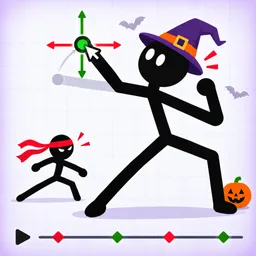
The developer credit on the game page is Original efforts. The game's own description lays out the loop in a few lines: start a new cartoon, add stickmen, animals, props and effects, drag their joints to pose them, add a new frame, move the characters a little, and press Play to watch the result. Finished cartoons go to a Gallery, and the ones other players like most climb to the Top.
At the time of writing the game had about 12,289 players online, close to 5.94 million visits and 26,846 favorites. Its vote count stood at 5,160 likes against 2,103 dislikes, which works out to roughly 71 percent positive. Those numbers move every day, so treat them as a snapshot from our November 4 to 5, 2026 check.
How a cartoon gets made, step by step
Everything below comes from two third-party walkthrough videos, NoobBlox's guide and a guide from CHALLS, plus the game description. On screen you can see the editor wrapped in a dark toolbar: a column on the left with Add, Draw, Scene, Audio, Fit, Shop and For You, a top bar with the cartoon's name, Publish, Onion, Camera and Play, and a frame strip along the bottom.
The Add button opens a window with tabs for characters, animals, props, effects, particles, text and shapes. In the footage the character tab starts with Stickman, Stick Girl, Ninja, Hero and Robot, and the rows below are marked VIP. The game description names four scenes, City, Beach, Space and Night, and there is a Scene button in the left column. In the videos we only see the beach and a green hill with a sun.
Once a character is on the canvas, clicking it brings up round joint dots and a side panel named after the character, with sections for Motion, Look and Arrange. The CHALLS video shows the in-game tutorial asking you to hold the dot on a ninja's foot and drag it out to a marked circle, then on the next pose to drag the hand to the other side to wave hello. That is the whole posing idea: you move joints, not whole sprites.
Animation comes from stacking frames. In the videos the timeline shows small numbered boxes, each with its own length such as 0.40s or 2.00s, and a button to add or delete frames. When a new frame is added, the previous pose appears as a faint ghost, which is how you see how far to move a limb. The top bar's Play button then runs the frames in order.
Menus and numbers worth knowing
Two menus in the footage go beyond plain posing. The Frame window sets a duration, with 2.00s on screen in the video, and a motion style. The styles listed include Smooth, Linear, Cut, Ease In, Ease Out, Back, Elastic, Bounce, Snap, Slow Mo, Anticipate and Steps, and a small live preview shows the effect before you apply it. A button there applies the chosen duration and motion to all frames at once.
The Moves window is a separate shortcut for common motions. It has a Characters tab and an Any Object tab, and in the footage the list includes Hop Forward, Bounce, Spin, Shake, Fly Across, Pop, Swing, Float, Grow Big, Fall Down, Wobble, Teleport, Grow In and Fade Away, with a repeat count and Slow, Normal and Fast speeds. A few entries carry a small PACK tag, and the footage does not explain what it means.
Beyond what appears in the videos, the game description adds free drawing with any color and brush size, a color picker, speech bubbles, and camera moves and zooms. It also says cartoons save automatically; the editor's top bar shows a Saved or Unsaved label, which matches that.
Publishing and the feed
Pressing Publish opens a small form. In the video it has a Title field with a 30-character limit, a Description field with a 200-character limit, a row of popular hashtags, and two switches named Allow remixes and Allow duets. The captions on screen explain them as other players making their own version of your cartoon, or making a cartoon next to yours. In the NoobBlox footage the remix switch is off and the duet switch is on, so they are set separately.
Published cartoons show up in a Browse feed. On screen the feed has a For You tab and hashtag tabs such as fight, crazy, random, hero, funny, robot, blood, xd and ghosts, plus Browse and Create buttons. A finished cartoon plays in the middle with like, dislike, comment, star and More buttons beside it. One clip in the footage is a short scene with a stick girl holding a gun and a blue hero under a speech bubble that reads Hello.
What the community is making
The two guide videos are titled around the same themes: controls, tips and tricks, how to go viral, and how to get stars fast. Both also mention codes in the title. We could not confirm any working code, and the game's own description lists none. Our codes page records that as of November 5, 2026, so check there before trusting a code from any other source.
From the footage, a lot of the example cartoons are small fight or action scenes with stick fighters, a robot with a laser gun, and a leaping figure over a sun. The hashtags in the feed lean the same way. These are examples chosen by the video makers, so they say more about what guides show than about what every player makes.
Updates and where to look next
Roblox lists the last update as November 4, 2026, so the game was still being changed when we looked. We do not have patch notes for it, and we would rather say that than guess what changed.
On this site, the Make a Cartoon page links to the codes page, which tracks any codes we can confirm and lists where we looked. There is no endings, badges or walkthrough page for it.
Live stats
12,289
Playing now
Playing now
- What
- People in the game right now
- Example
- 12,289 = about 12.3K players
- Read it
- Bigger = more popular. Refreshes every 5 minutes.
5.94M
Visits
Visits
- What
- Times the game has been opened since launch
- Example
- 5.94M visits
- Read it
- Shows how big the game is.
26.8K
Favorites
Favorites
- What
- Players who favorited the game on Roblox
- Example
- 26,846 players
- Read it
- More = people want to come back.
71.0%
Liked
Liked
- What
- Likes ÷ (likes + dislikes)
- Example
- 5,160 likes, 2,103 dislikes → 71.0%
- Read it
- Above 80% means players like it.
Numbers from Roblox, refreshed every 5 minutes.
Guides
Player count trend
Screenshots
What is Make a Cartoon?
Draw, animate and share your own cartoons. Start a new cartoon, add stickmen, animals, props and effects, then drag their joints to pose them. Add a new frame, move the characters a little, and press Play to watch them move. Finished cartoons can be shared in the Gallery, and players like the best ones to push them up the Top.
More gameplay videos
Other players' Make a Cartoon videos on YouTube. Tap one to watch here.
